Looking professional helps you make a great impression and can lead to more shifts. Each shift will specify one of our standard uniform types, which you'll need to upload a photo of before you can work.
Standard uniform types
When you apply for a shift, you'll see which uniform is required. Here are the standards for the most common types. Some shifts use other uniform types, and the exact requirements always show on the shift.
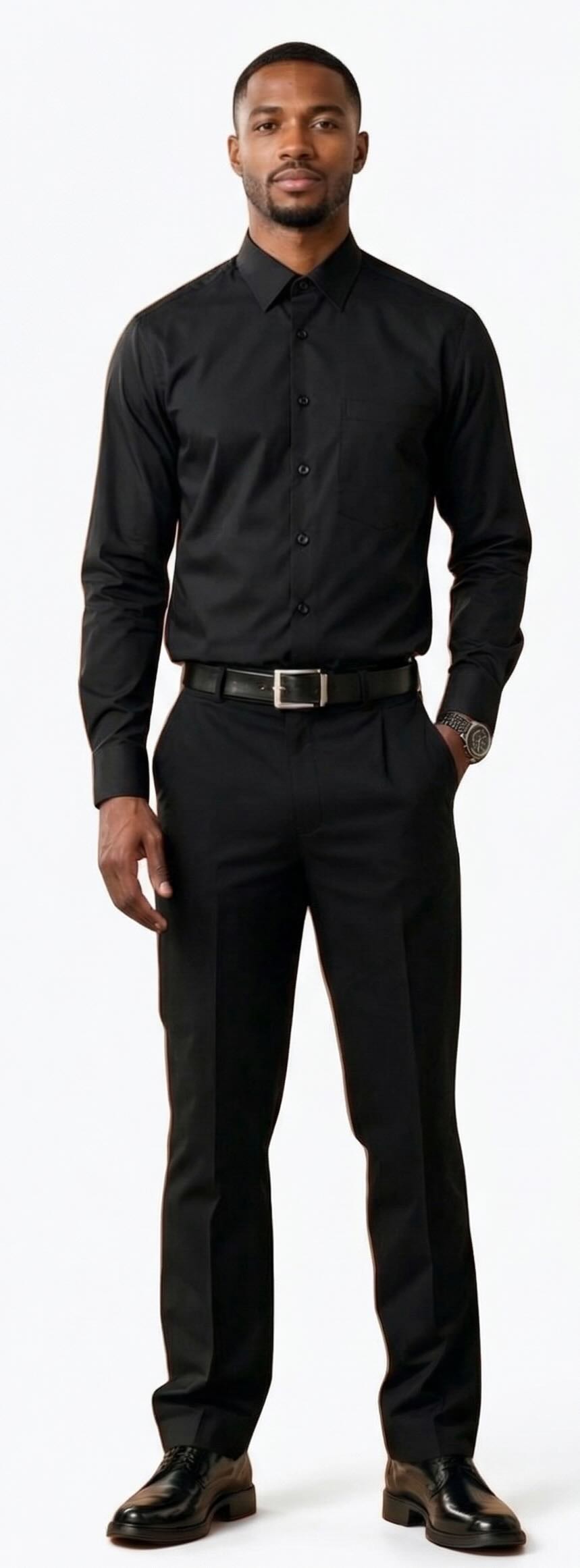
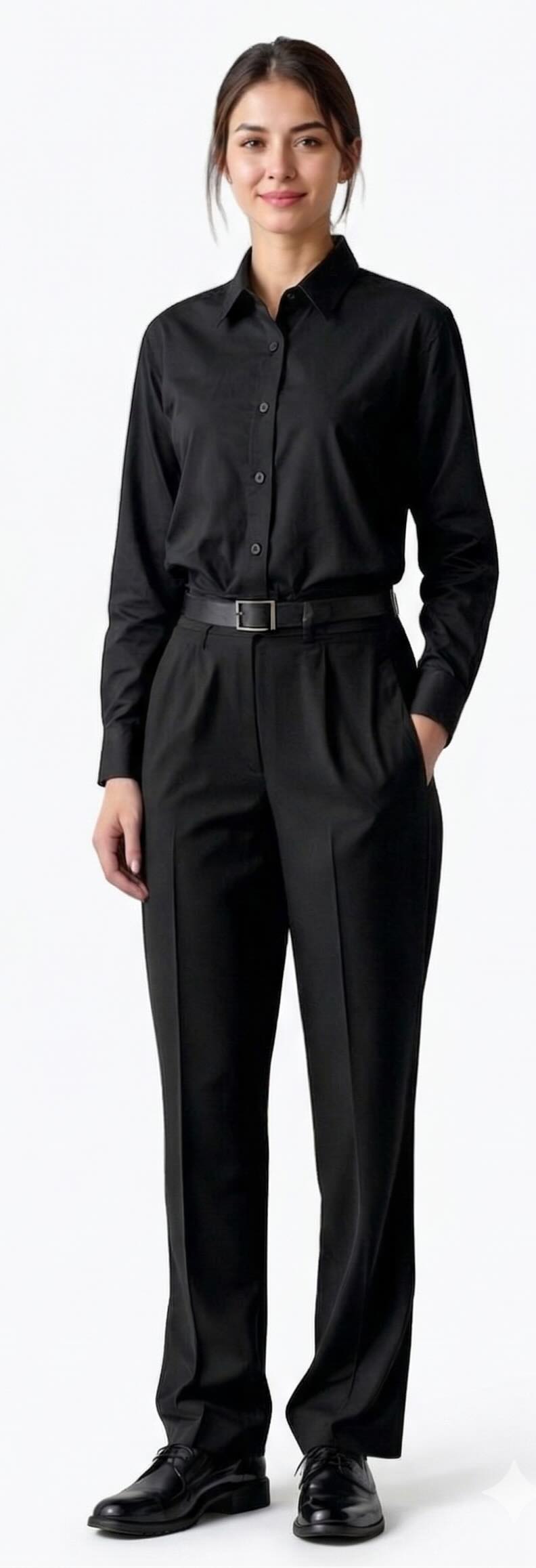
1. All Black
- Long-sleeve black button-down shirt
- Black belt
- Black pants
- Black shoes
- No wrinkles
- No jeans or tennis shoes
- No facial piercings, unnatural hair colors, or visible tattoos
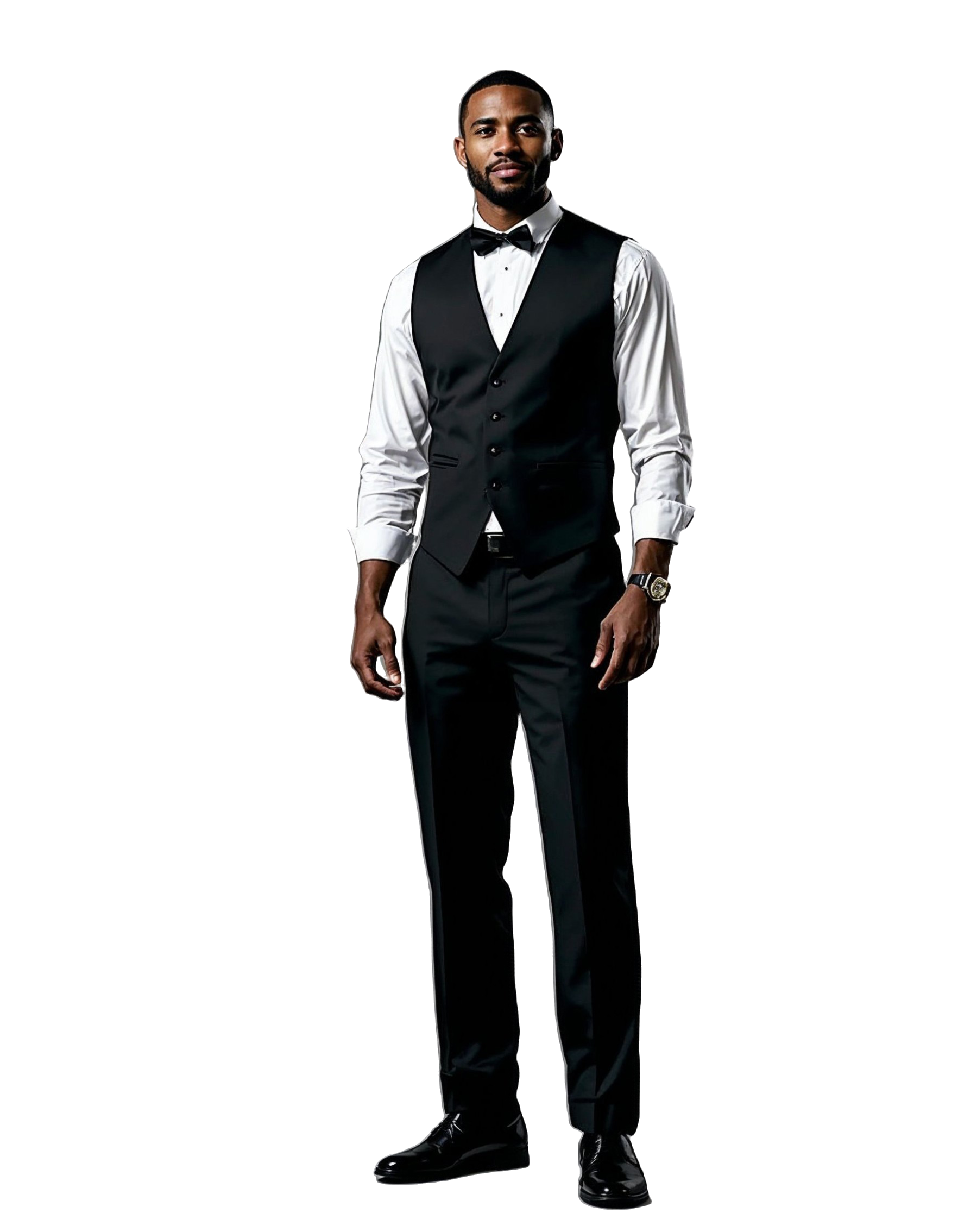
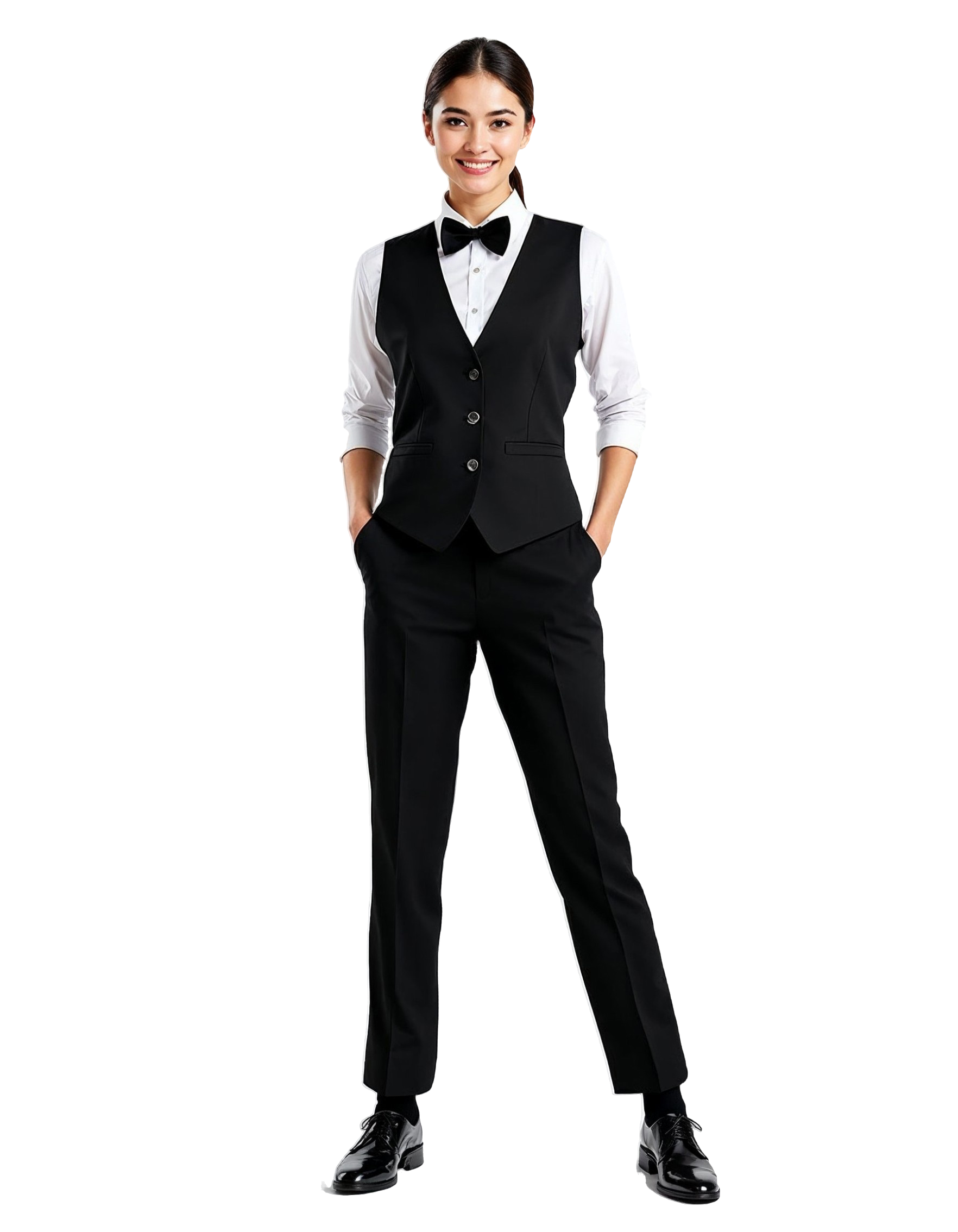
2. White Shirt, Black Vest, Bowtie
- White button-down shirt
- Black vest
- Black bowtie
- Black belt
- Black pants
- Black shoes
- No wrinkles
- No jeans or tennis shoes
- No facial piercings, unnatural hair colors, or visible tattoos
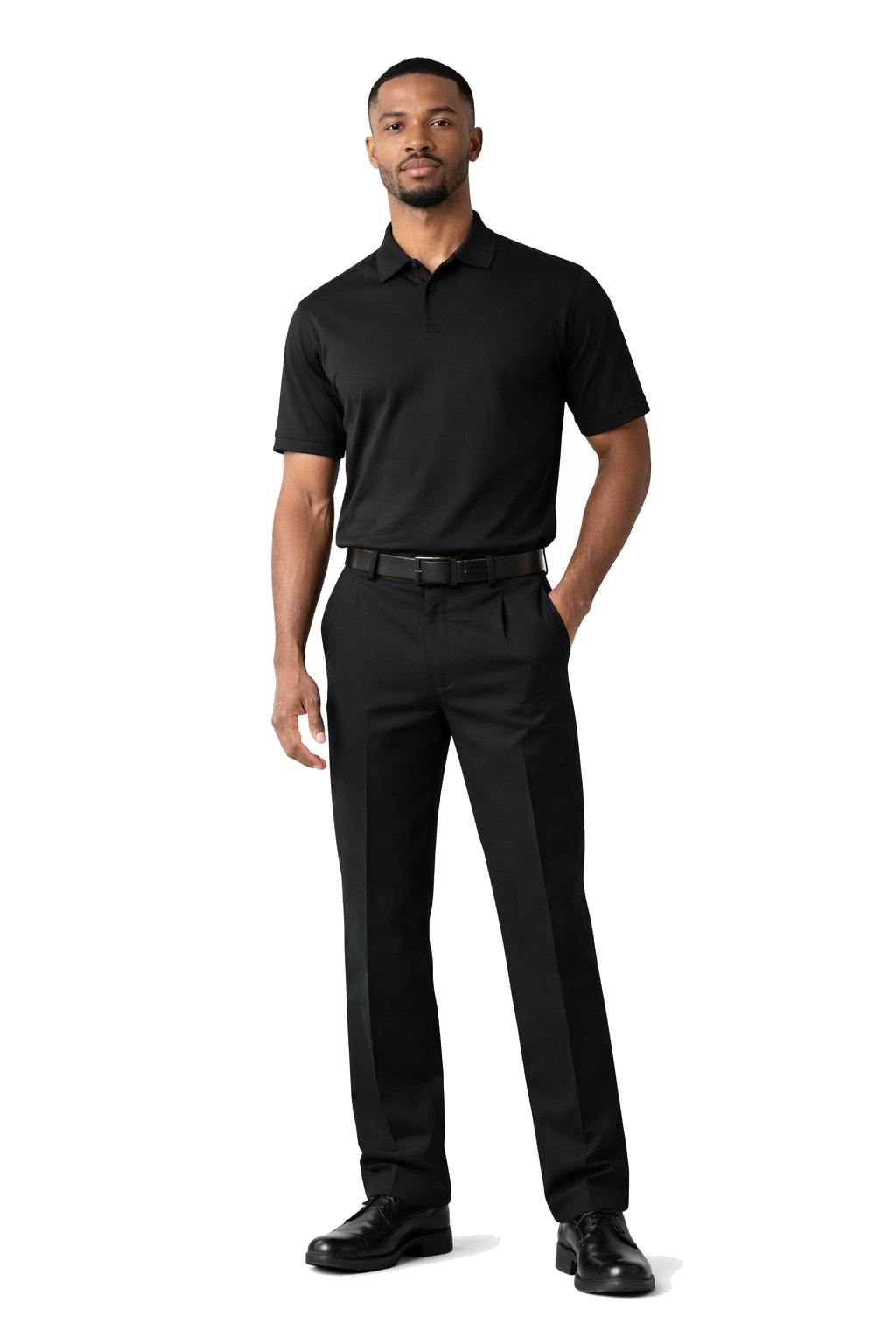
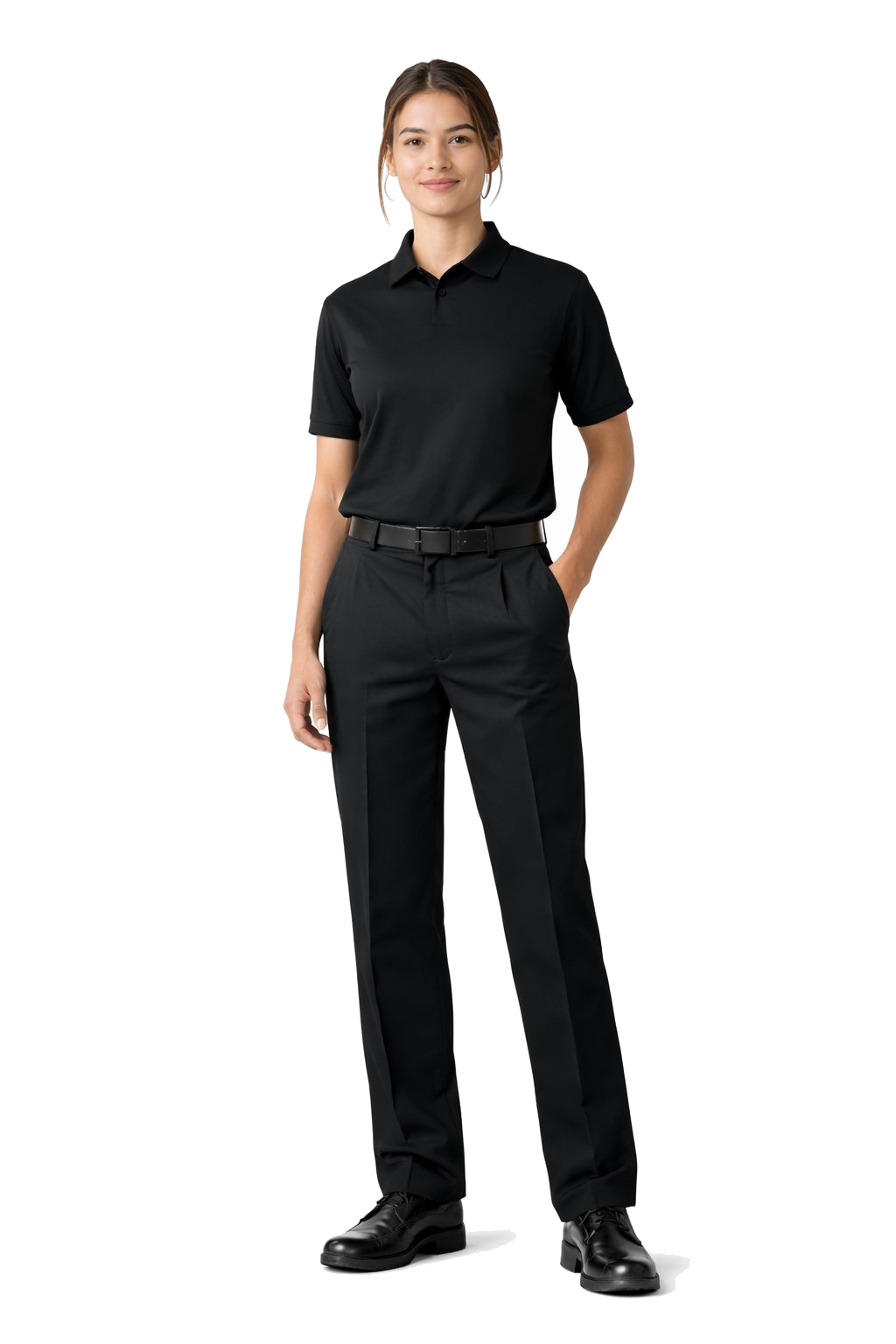
3. Black Polo Utility (All Black Utility)
- Black short sleeve collared shirt
- Black dress pants (if there are belt loops, please wear a black belt)
- Black non-slip shoes (no white soles)
- Black socks
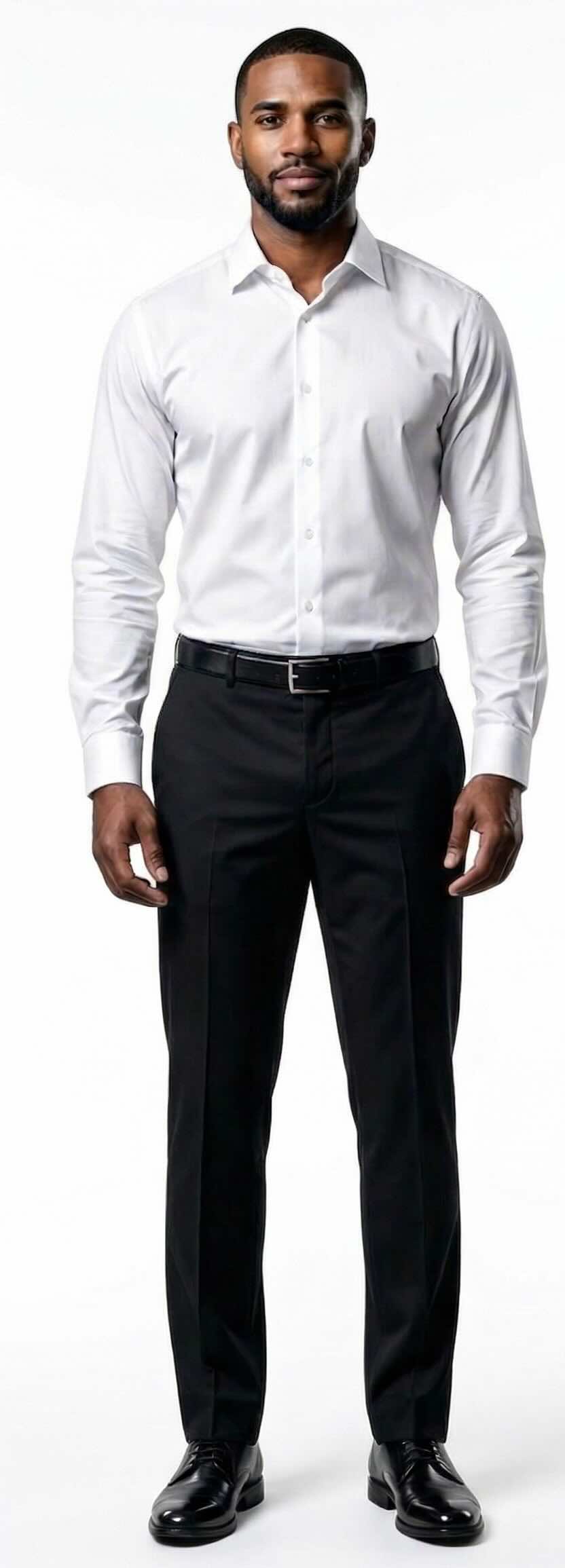
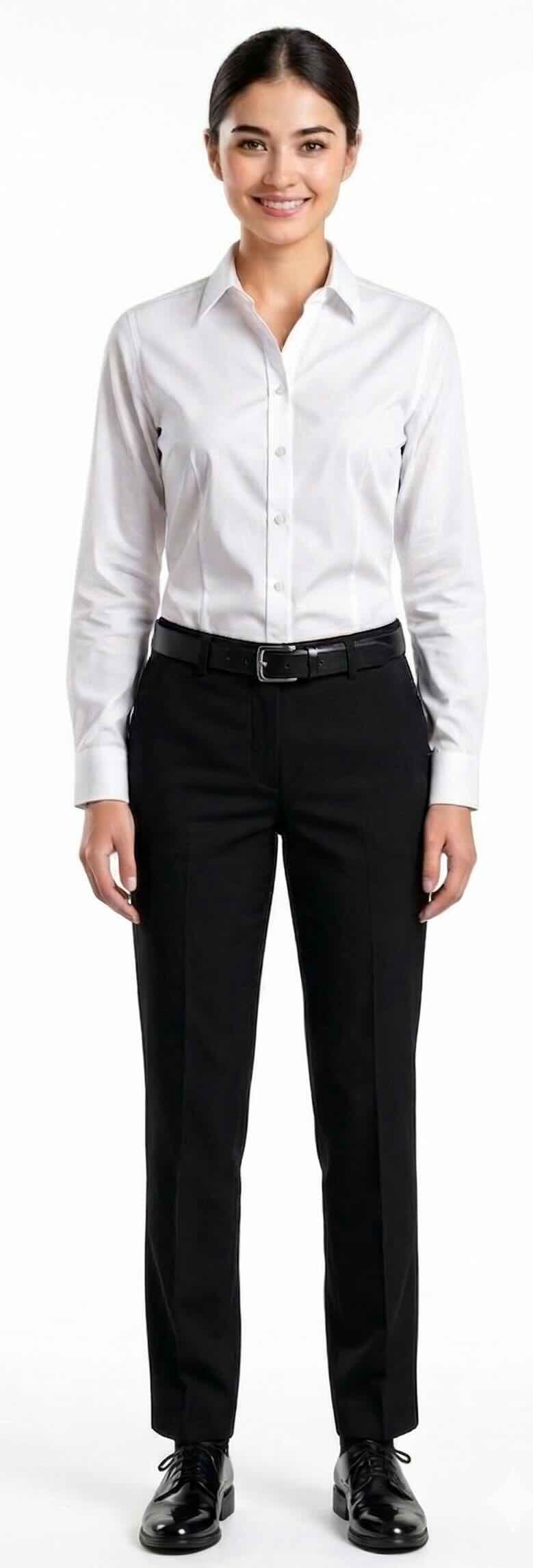
4. White Shirt, Black Pants
- White button-down shirt
- Black dress pants (no jeans, leggings, or cargo pants)
- Black belt
- Black non-slip shoes (no tennis shoes)
- No wrinkles
- No facial piercings, unnatural hair colors, or visible tattoos
Open More, then tap Uniform to choose the uniform photo you want to upload.
How to upload your uniform photo
- Open the Croux app and tap More
- Tap Uniform
- Select the uniform type you need to upload
- Take a forward-facing photo with your face visible, showing the complete outfit
- Submit for review. Most photos get an automatic decision within minutes; some need a manual review that takes longer. You'll see the result in the app
Photo tips
- Stand in good lighting so we can clearly see your outfit
- Show the full outfit from head to toe if possible
- Make sure your face is visible in the photo
- Wear the actual uniform — don't submit photos of clothes on hangers
Photo authenticity
All uniform photos are scanned for AI-generated content and digital manipulation. Photos created or altered using AI image generators, face-swap tools, background replacement, body or clothing editing, or any form of digital enhancement will be automatically rejected. All photos must accurately represent you and your uniform as they appear in person.
What if my photo is rejected?
If your uniform photo doesn't meet the requirements, we'll let you know what needs to be fixed. Common reasons for rejection:
- Wrong color (e.g., navy instead of black)
- Missing required items (belt, tie, vest)
- Face not visible in the photo
- Photo is blurry or poorly lit
- Visible wrinkles or unprofessional appearance
- AI-generated or digitally altered images
Upload a new photo that meets the requirements and it goes back into review.
Custom uniforms
Some businesses have custom uniform requirements that differ from our standard types. If a shift requires a custom uniform, the specific requirements will be listed in the shift details. Follow those instructions and upload a photo showing you meet their requirements.
Questions?
If you're unsure about uniform requirements for a specific shift, use the in-app messaging to contact the business directly, or reach out to us at support@croux.co.
Related articles
- Uniform Photo Review: How It Works and Why Photos Get Rejected
- Your First Shift: Everything You Need to Know
- Shift Requirements: What to Review Before You Accept
Need more help?
Send it to us at support@croux.co and we are happy to help!